
Your Elementor login page deserves a better next step
You can design every detail of your Elementor login page. With LoginWP Pro, you can shape what follows it, too: send clients to their workspace, members back to the page they wanted, and other users to a destination that fits their role.
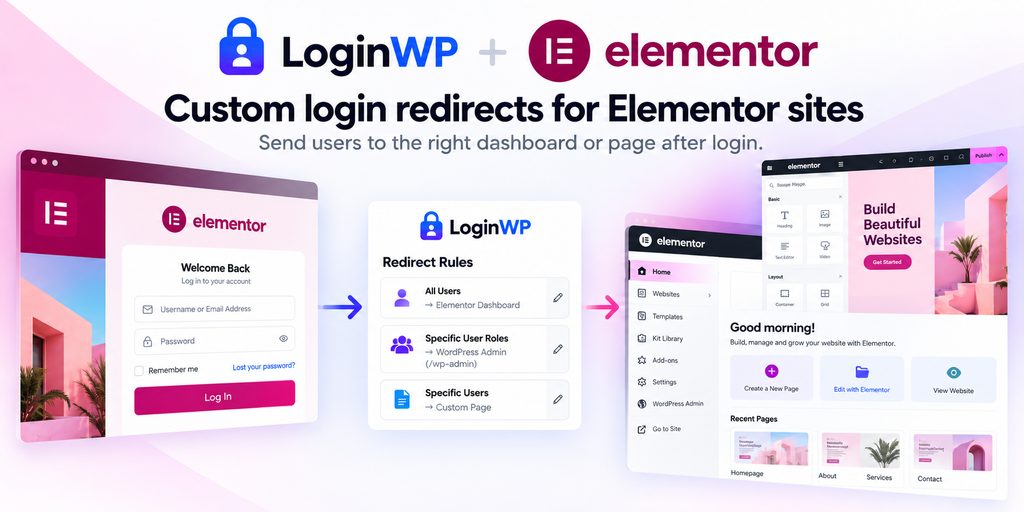
The form looks right. Where do users go next?
Imagine a client signing in on a page you built in Elementor. A generic destination adds another click before they reach their work. LoginWP Pro applies your redirect rules to Elementor’s Login widget, making that next page a deliberate part of the experience.
One login widget. Different destinations.
The client
Use a username, role, or capability rule to take a client to the right portal or dashboard after login.
The returning reader
Use {{previous_page}} to take someone back to the page they visited before opening your login page, such as a protected article. Confirm that their account can access it after sign-in.
The popup visitor
When the login form appears in a popup on the page the visitor wants, use {{current_page}} to return them there after login. Test the widget’s own redirect option too.
Dynamic placeholders
Return users to their current or previous page with Pro placeholders.
Developer friendly
Extend clean, focused code with the hooks and filters you expect.
Easy to use
Create precise redirect rules in seconds, with no coding knowledge required.
HOW IT WORKS
Put the journey together
- Install and activate LoginWP Pro. Create or edit a page containing Elementor’s Login widget.
- Check your installed LoginWP version for an Elementor integration control and enable it if present.
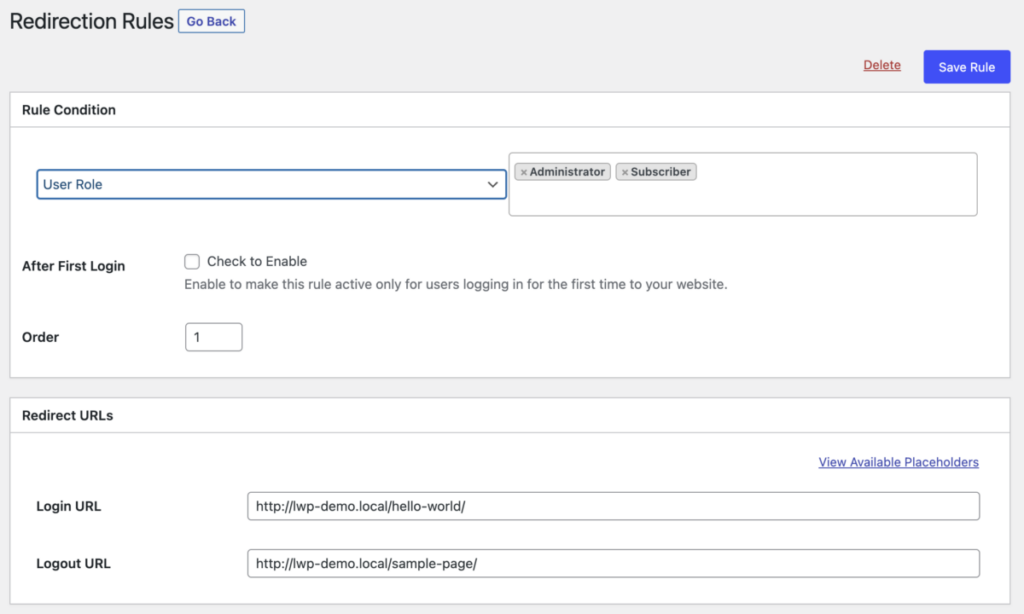
- Open LoginWP → Redirections → Add New. Select a rule condition such as username, role, or capability, and enter the login destination URL.
- To send a visitor back to the preceding page or keep them on the page containing the login form, enter {{previous_page}} or {{current_page}} in the Login URL field, as appropriate.
- Save and test with the Elementor Login widget using accounts that match and do not match your rule. Check the widget’s own Redirect After Login setting so the destination you intend is the one users see.
For detailed guide, read the Elementor integration documentation here: LoginWP Now Integrates with Elementor Login Form
Frequently Asked Questions
Does LoginWP Pro work with Elementor’s Login widget?
Yes. LoginWP documents support for its redirect rules with the Elementor Login form. Use the Login widget and test your page’s actual sign-in flow after setup.
Can different users go to different pages?
Yes. LoginWP lets you create rules based on usernames, roles, and capabilities, each with a chosen login URL.
Can visitors return to the page they were viewing before login?
Yes. Set the Login URL of the appropriate LoginWP rule to
{{previous_page}}. For a login form shown on the destination
page itself, {{current_page}} may be the better fit.
Does Elementor have its own login redirect option?
Yes. The Elementor Login widget has a Redirect After Login option. When using LoginWP rules, check that widget setting and test the resulting destination so the two configurations serve the same intended flow.
Does this integration add new Elementor widgets or templates?
No. This integration applies LoginWP redirection behavior to Elementor’s existing Login widget. Design the form in Elementor and configure redirect rules in LoginWP.
Need Support?
Reach out to us directly: https://loginwp.com/support/
Explore LoginWP documentation
Check our Knowledge Base documentation here: https://loginwp.com/docs/
Finish the login experience you designed
Make your Elementor Login widget the start of a more relevant journey. Set up LoginWP Pro redirects for the people and pages that matter to your site