
Bring members into the heart of your community
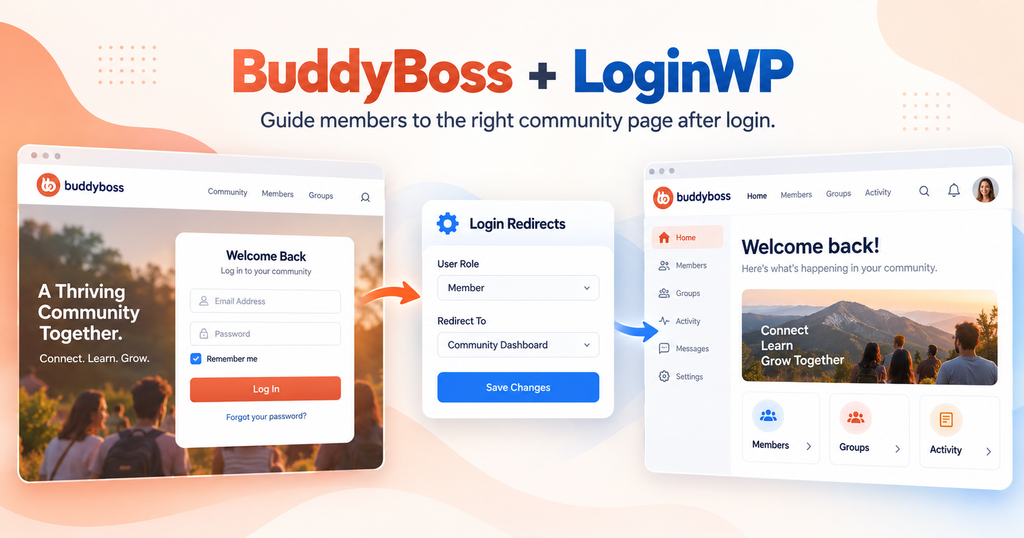
The login form is the front door. Give members a useful next stop. LoginWP Pro works with the BuddyBoss login form so you can direct people to a profile, community space, or welcome page after they sign in.
A good welcome helps the conversation begin
A new member may need an orientation page. A moderator may need the discussion area. A returning member may simply want to get back to the page they came from. With LoginWP redirect rules, you can choose destinations that fit the people in your community and test the journey through the BuddyBoss login form.
Where will members go after sign-in?
Community welcome
Choose a welcome or start-here page for an appropriate WordPress user role. Help members find guidelines, introductions and discussions. A role rule also applies on later logins unless you configure a separate first-time flow.
Moderator workspace
Use a role-based rule to direct moderators to the page your team uses to begin its work. Make sure their WordPress role matches the rule you configure.
Personal destination
Set a rule for a particular username when one member needs a specific landing page. Where appropriate, use LoginWP’s URL placeholders to form a profile destination; test the actual URL format on your site.
Your community stays in BuddyBoss. The routing lives in LoginWP.
BuddyBoss provides the community experience and its login form. LoginWP Pro applies the redirect rules you configure to that form. You can also choose logout destinations for the supported flow, giving the end of a session a deliberate next page.
Connect the BuddyBoss login journey
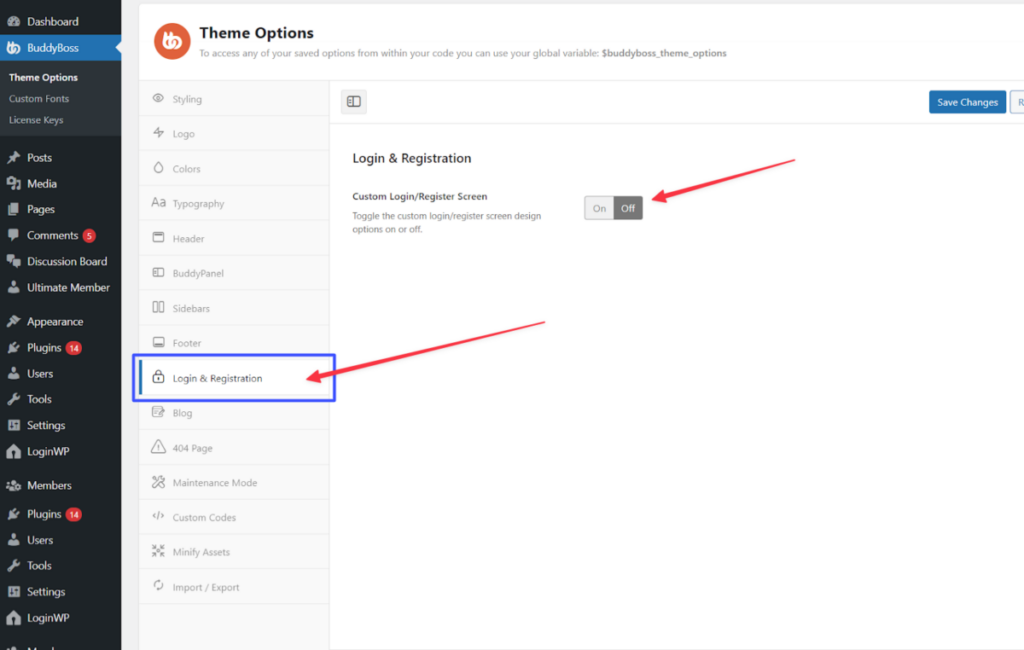
- Activate the BuddyBoss Theme’s custom login and registration features in its Theme Options, then confirm that your site uses the BuddyBoss login form.
- Install and activate LoginWP Pro. Open LoginWP → Redirections and create a new rule for a WordPress role, capability, or username that fits the audience you want to direct.
- Set a login URL, and a logout URL if needed. Save the rule.
- Sign out and test through the BuddyBoss login form with matching and nonmatching accounts. Check any BuddyBoss login redirect settings that may also be configured on the site.
For detailed guide, read the BuddyBoss integration documentation here: LoginWP Now Works with the BuddyBoss Login Form
Frequently Asked Questions
Does LoginWP Pro work with the BuddyBoss login form?
Yes. LoginWP documents compatibility with the BuddyBoss login form for custom login and logout redirects. Enable the BuddyBoss custom login feature and test your actual login flow.
Can I set different destinations for different members?
Yes. LoginWP supports rules by WordPress username, role, or capability. Use the condition that reflects how your site organizes its members.
Can I redirect people based on BuddyBoss group or profile type?
This page does not claim those as LoginWP rule conditions. BuddyBoss offers some redirect settings of its own, including profile-type options on eligible plans. Check the exact settings in your BuddyBoss installation if that is your requirement.
Can I send someone to their profile?
You can enter a profile URL as a destination or use a suitable LoginWP URL placeholder if your profile path supports it. Test with multiple accounts to confirm each person reaches the correct profile.
What happens if BuddyBoss also has redirects configured?
Test the combined settings on your site. Review both plugins’ configured destinations so the member journey is clear and consistent.
Need Support?
Reach out to us directly: https://loginwp.com/support/
Explore LoginWP documentation
Check our Knowledge Base documentation here: https://loginwp.com/docs/
Open the door to a more connected visit
Make sign-in lead to the community page you want members to see. Set up LoginWP Pro redirects for your BuddyBoss login experience.