
Redirect WordPress Users After Login Based on WishList Members Levels
When running a Membership site, redirecting members to specific pages is essential, especially after they log in. This can help you increase revenue by pointing members directly to member-only pages and improves the overall user experience.
By default, WordPress users are redirected to the site’s backend after they log in, which is a poor navigation experience; hence, a login redirect is essential.
LoginWP is a plugin to improve the login/logout experience of your WishList Member-powered membership site. It lets you define redirect rules for specific users, users with particular roles, membership plans, capabilities, and a blanket rule for all other users.
In this short article, I will guide you through setting up LoginWP to enhance the overall login/logout or registration experience on your membership website powered by WishList Member.
Setting Up Membership Login Redirect
The free version of LoginWP lets you define a set of redirect rules for specific users, users with specific roles and capabilities, and a blanket rule for all other users.
However, you will need the paid version of LoginWP for the WishList Member integration to work, which lets you set login and logout redirect rules based on the membership plan users are subscribed to.
Installing the Plugin
Once you purchase the premium version of LoginWP, you will receive an email with the plugin download link. You can also download the pro version of the plugin from your LoginWP account dashboard.
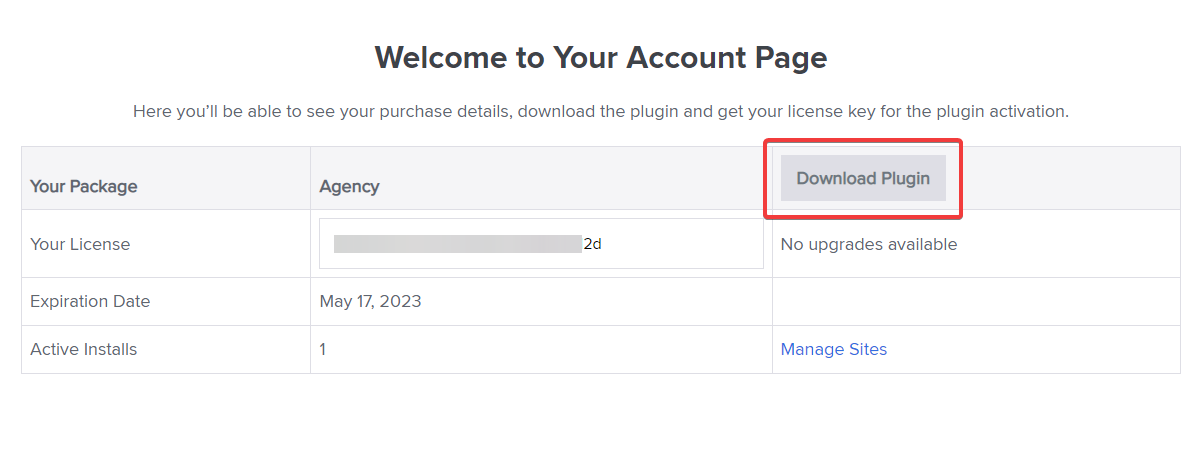
Once downloaded, go ahead and install it on your Membership site.
In your WordPress admin dashboard, go to Plugins → Add New and upload the zip file. Then, click on the Activate button to enable the plugin on your WordPress site.
Enabling the WishList Member Integration
After you LoginWP plugin on your WordPress site, you will need to enable the integration between LoginWP and WishList Member.
You can do that by heading to LoginWP>>Redirections>>Integrations and clicking the checkbox beside WishList Member.

WishList Member Login Redirect Based on Membership Levels.
If you want to redirect your members after they login based on their membership plan, follow these steps:
- Go to LoginWP >> Redirections >> Add New
- Select the ‘Subscribed Membership Plan’ condition
- Select the membership plan in the value field
- Fill in the login/logout URLs (or placeholders)
- Click on “Save Rule”

Using Placeholders
LoginWP has placeholders you can use instead of URLs in the login/logout fields to give you more control over the URL and provide a way to redirect your Members to dynamic URLs.

Get LoginWP
LoginWP also integrates with WooCommerce memberships and subscription add-ons, allowing WooCommerce site owners to set up login redirect rules based on users’ active membership plans or subscriptions. It also integrates with many popular tools and services, including WooCommerce, WPForms, LearnDash, etc.